Overview
AIHelper gives your macros the ability to send prompts to an AI provider and receive
responses. You only need one method: Send(). Configure the helper, call
Send(), and use the returned text in your automation.
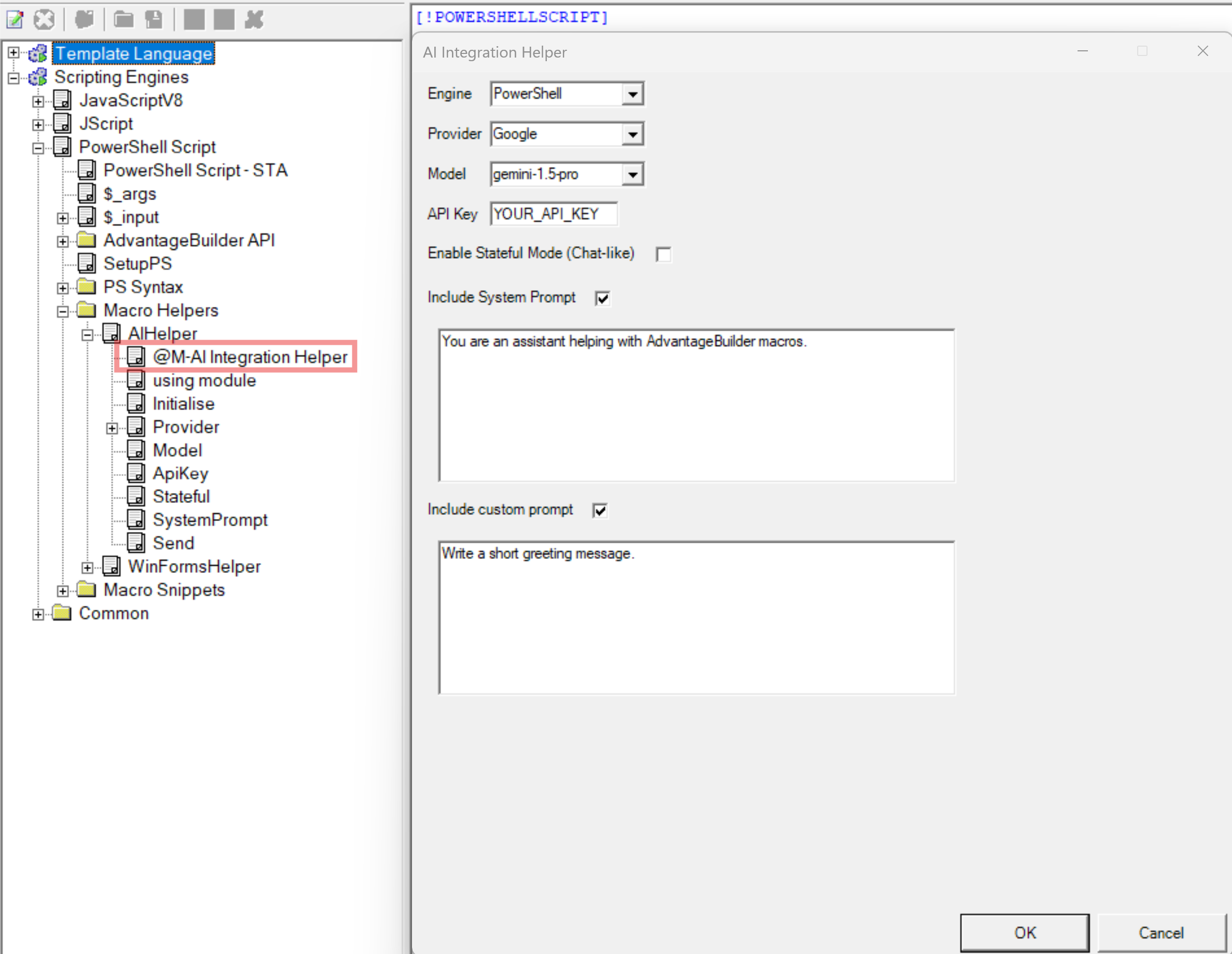
AdvantageBuilder also includes the @M-AI Integration Helper macro, which provides a UI for selecting providers, models, and assembling messages without writing code.
AIHelper Properties
These properties control how AIHelper behaves:
- Provider — The AI provider name
- Model — The model identifier
- ApiKey — Your API key
- Stateful —
trueto maintain conversation history (default isfalse) - SystemPrompt — Optional system instruction
After setting these properties, call Send() with your prompt text and use the
returned string in your macro.
Using @M-AI Integration Helper
The @M-AI Integration Helper macro provides a visual interface for working with AIHelper. It lets you:
- Select a provider
- Choose a model
- Enter or assemble prompts
- Preview responses
- Automatically insert generated AIHelper code into your macro
When you run the helper macro from the menu, the generated AIHelper code is automatically inserted into your macro at the cursor position — no copying or pasting required.
PowerShell Example
This is the correct way to load AIHelper in PowerShell, configure it, and call
Send().
# Load AIHelper
using module "[PSModuleLibrary]\AIHelper.psm1"

# Create AIHelper instance
$AIHelper = [AIHelper]::new()

# Configure
$AIHelper.Provider = "google"
$AIHelper.Model    = "gemini-2.0-flash"
$AIHelper.ApiKey   = "YOUR_API_KEY"

# Enable stateful mode if needed
# $AIHelper.Stateful = $true

$AIHelper.SystemPrompt = "You are an assistant helping with AdvantageBuilder macros."

# Send a prompt
$response = $AIHelper.Send("Write a short greeting message.")

# Use the result
$response
JavaScriptV8 / JScript.NET Example
This is the correct way to load AIHelper in JavaScript, configure it, and call
Send().
// Load AIHelper
var AIHelper = eval(getSourceCode('AIHelper', 'Macro Main Helpers\\Library', 'AIHelper'));

// Configure
AIHelper.Provider = "google";
AIHelper.Model    = "gemini-2.0-flash";
AIHelper.ApiKey   = "YOUR_API_KEY";

// Enable stateful mode if needed
// AIHelper.Stateful = true;

AIHelper.SystemPrompt = "You are an assistant helping with AdvantageBuilder macros.";

// Send a prompt
var response = AIHelper.Send("Write a short greeting message.");

// Use the result
write(response);
Putting It All Together
Use the @M-AI Integration Helper macro to configure AIHelper and experiment
with prompts. When you run the helper macro, the generated AIHelper code is automatically
inserted into your macro at the cursor position. You can then call Send()
wherever your macro needs AI-generated text.